
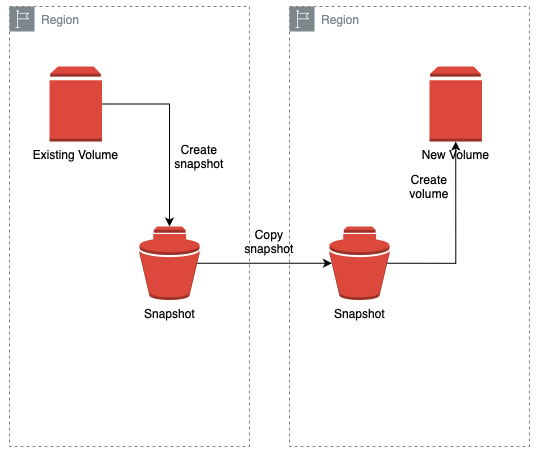
Amazon Elastic Block Storage is a block storage solution offered by AWS for Amazon Elastic Compute Cloud (EC2). However, it is not possible to move the EBS volume across availability zone and region directly.
This post will show the workaround to move the volume to another region.
Why Move EBS Volume Across Regions?
- Disaster Recovery: Keep a backup of the EBS Volume in another region to mitigate the impact of regional outages.
- Cost Optimization: To move data to another region with lower operational costs.
- Compliance: To align with regulatory requirements.
- Latency: Move data to region closer to users
Key Considerations
- Cost: Data transfer cost when moving data across regions.
- Permission: Your IAM credentials have the necessary permissions to create and access snapshots and volumes.
Steps to move EBS Volumes
Create Snapshot of the EBS Volumes
- Access to AWS Management Console, navigate to EC2.
- From the side navigation panel, access to Volumes.
- Select the volume and click on the Actions > Create snapshot.
Copy the Snapshot to the Target Region
- From the side navigation panel, access to Snapshots.
- Select the snapshot created, click on the Actions > Copy snapshot.
- Select the Destination Region, click on the Copy snapshot.
Create a Volume from the Snapshot in the Target Region
- Switch to the target region in the AWS Management Console, navigate to EC2.
- From the side navigation panel, access to Snapshots
- Select the snapshot created, click on the Actions > Create volume from snapshot.
Attach the Volume to an EC2 Instance
- From the side navigation panel, access to Volumes.
- Select the volume created, click on the Actions > Attach Volume
- Select the EC2 instance and click Attach.
The volume had now been copied from region A to region B.
Useful Linux Command
Verify the EBS Volume is Attached
Use the following command to list block devices.
lsblk
Create a Filesystem
If the EBS volume is new and doesn’t have a file system, use the following command to create an ext4 filesystem
sudo mkfs.ext4 /dev/xvdf
Note: Replace /dev/xvdf with the actual device name for your volume
Mount the Volume
Create a directory to use as a mount point, and mount the EBS volume to the directory
sudo mkdir /my-ebs-volume
sudo mount /dev/xvdf /my-ebs-volumne

Reference
https://docs.aws.amazon.com/ebs/latest/userguide/ebs-using-volumes.html

Leave a Reply